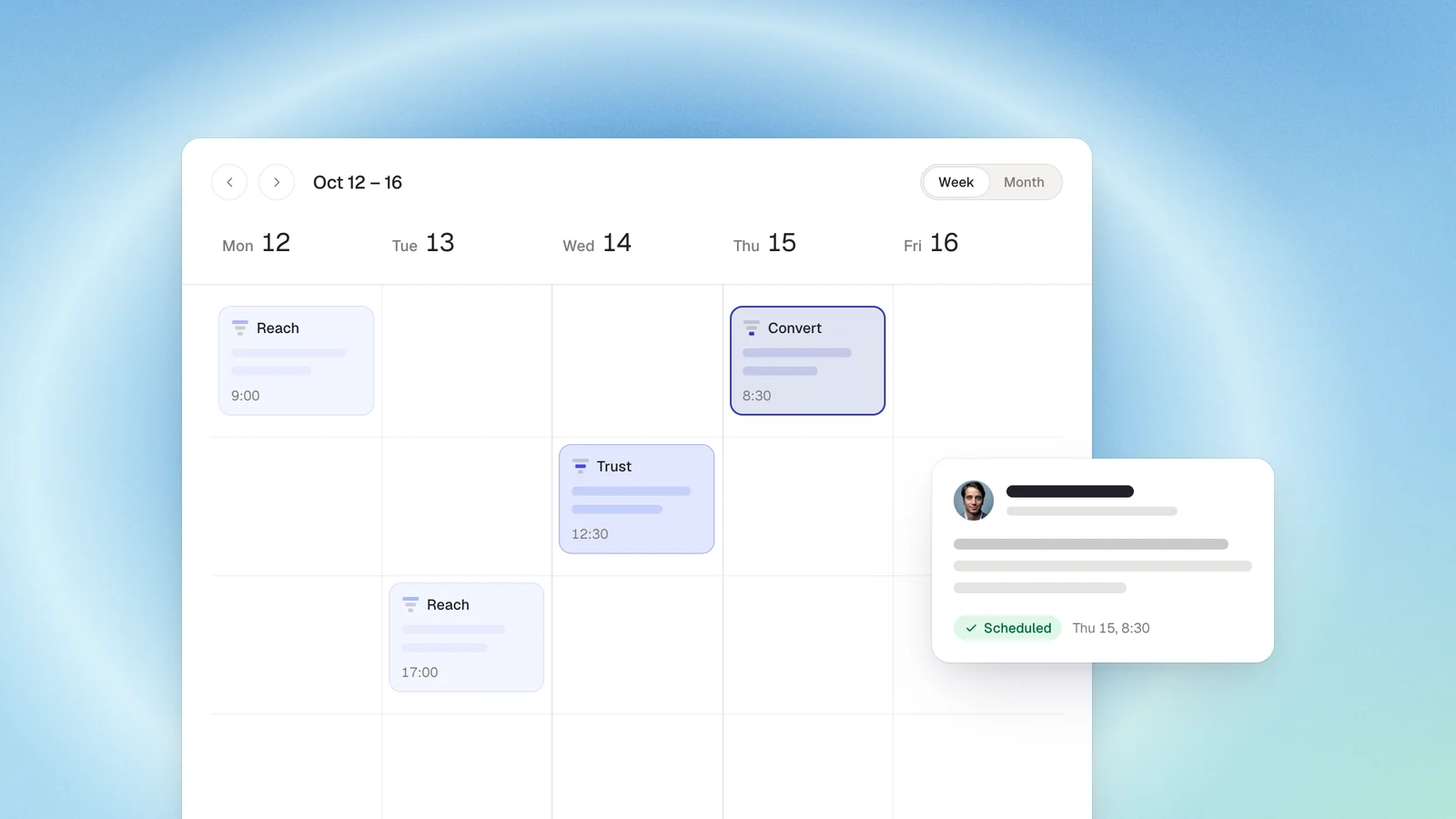
This free content calendar template plans a B2B team's social media in one Excel file: a monthly plan per profile, your topics, one row per post across networks and a monthly review. Download the Excel template or the CSV of the calendar sheet. No sign-up, no email.
It is built for you if you plan posts for the company page and several colleagues. Below, every sheet and column is explained, with an example week you can copy.
Definition
A content calendar is the shared plan of what gets published, where, when and by whom. A social media content calendar covers posts on social networks; a wider content calendar adds articles, newsletters and events.
What is in the template
The template has five working sheets and a Read me sheet, and each sheet answers one planning question. Start with the Topics sheet; the Calendar sheet is where the posts live.
| Sheet | What it answers | One row is |
|---|---|---|
| Monthly plan | How many posts does each profile publish, and what for? | A profile on a network, with its Reach, Trust and Convert split |
| Topics | What do we post about, and what proof do we hold? | A topic, the buyer question it answers and who can speak to it |
| Calendar | What goes out when, and where is it? | One post |
| Review | What worked this month, and what changes? | A profile's month |
| Lists | What can the dropdowns say? | A network, strategy, post type, format or status |
The grey rows in the Monthly plan, Topics and Calendar sheets are an example for a fictional IT consultancy. Delete them before you plan.
Every column, explained
The Calendar sheet has 22 columns, from date and network to the result of each post; here is what to write in each and why. Pick values from the dropdowns where there is one, so filters and counts work.
| Column | What to write | Why it is there |
|---|---|---|
| Date and Day | The publishing date; the weekday fills itself | Gaps and clusters show at a glance |
| Network | LinkedIn, Instagram, YouTube or another network | One plan for every network the team uses |
| Profile | The company page or the colleague who posts | Shows who carries the plan and who is overloaded |
| Topic | One of the topics from the Topics sheet | Keeps posts on the subjects you can prove |
| Strategy | Reach (top of funnel: new people see you), Trust (middle of funnel: show what you know) or Convert (bottom of funnel: invite a next step) | Says what the post is for and how to judge it |
| Post type | A milestone, a guide, a launch and so on | Keeps the month from repeating one kind of post |
| Format | Text only, single image, photo set, carousel, video, poll or link | Tells the designer what to make and when |
| Working title or hook | The opening line or a short title | Lets reviewers react before anyone writes |
| The one point it makes | One sentence | Stops posts that try to say everything |
| Visual | What the picture or video shows | Turns into the design brief |
| Campaign | A launch or event the post belongs to | Lets you filter a campaign's posts |
| Owner and Reviewer | Who writes it and who approves it | Nobody wonders whose turn it is |
| Status | Idea, Drafting, In review, Changes requested, Approved, Scheduled or Published | Shows where every post is stuck |
| Draft link and Published link | Links to the draft and the live post | One click from plan to post |
| Engagement after three days | Reactions, comments and reposts | The result, read at a fixed point |
| Author's usual | The median engagement of that author's previous 20 posts | The fair baseline for this author |
| Result vs usual | Fills itself: engagement divided by the usual | Above 1 means the post beat its author's usual post |
| Job result | Views for Reach, saves for Trust, link clicks or replies for Convert | Judges each post by what it was for |
| Notes | Anything the owner or reviewer needs to know | Keeps comments out of other columns |
The Post type list follows the post types Scripe uses, grouped by strategy, so you can pick a post type that fits the Reach, Trust or Convert you chose.
An example week
Here is one week from the template's example plan for the IT consultancy: four LinkedIn profiles, a YouTube channel and an Instagram account. It shows the kind of mix the columns are for, not a quota.
| Day | Network | Profile | Strategy | Format | Working title | Status |
|---|---|---|---|---|---|---|
| Mon | Founder | Reach | Photo set | Ten years since our first client: the one habit we never dropped | Approved | |
| Tue | Company page | Trust | Carousel | Seven checks before you move a legacy app to the cloud | In review | |
| Wed | Head of Delivery | Trust | Single image | The migration we got wrong last year, and what we changed | Drafting | |
| Thu | Sales lead | Convert | Single image | Our cloud cost review worksheet, free and linked in the post | Idea | |
| Thu | YouTube | Company YouTube | Trust | Video | Walkthrough: the seven checks from Tuesday's carousel | Drafting |
| Fri | Company Instagram | Trust | Photo set | Our new joiners' first week | Idea | |
| Fri | Company page | Trust | Single image | We are hiring two cloud engineers | Scheduled |
One topic, cloud migration, feeds a carousel, a lesson from a project and a YouTube walkthrough in the same week, each for a different reader.
How to create a social media content calendar with the template
Fill the template from the top down: the plan decides the rows, the rows decide the drafts. Once the topics exist, plan it in one session a month.
- Write three or four topics in the Topics sheet, each with the buyer question it answers and the proof you hold.
- Set each profile's month in the Monthly plan sheet: posts per month and how many are Reach, Trust and Convert. The check column flags a split that does not add up.
- Add one Calendar row per planned post, with date, network, profile, topic and strategy. Leave titles empty for now.
- Add a working title and the one point for each row, then name the owner and the reviewer.
- Move each row through the statuses as it is drafted, reviewed, approved and scheduled.
- Fill in the results three days after publishing, then complete the Review sheet at the end of the month.
If you have not set the strategy behind the plan yet, start with our guide to B2B social media strategy, which walks through the decisions the Monthly plan sheet asks for.
How many posts to plan, and when
Plan the number of posts each profile can keep up for a quarter, not the most the calendar can hold. Scripe's LinkedIn Trend Report 2026 compared 3.26 million public LinkedIn posts from 2024 to 2026 with each author's own usual post, and for smaller accounts the number of posts mattered more than the hour.
- For accounts with 500-1,999 followers, a month with 10-19 posts came with 2.2× the author's average follower gain.
- The best hour earned 4% more than the author's average and the worst 5% less.
So the Date column matters more than a time column, which is why the template has none; add one if your scheduling tool needs it. For more on timing, see what our data shows about the best time to post on LinkedIn, and for the rest of the cadence findings our B2B social media strategy guide.
How to run reviews in the calendar
Use the Status column as the review step, and agree who may move a row to Approved. A row stays In review until the reviewer approves it or sets Changes requested with a note.
| Status | Means | Who moves it |
|---|---|---|
| Idea | A title, no draft yet | Anyone |
| Drafting | The owner is writing | Owner |
| In review | Waiting for the reviewer | Owner |
| Changes requested | The reviewer left notes | Reviewer |
| Approved | Ready to schedule | Reviewer |
| Scheduled | Queued in the network or your scheduling tool | Owner |
| Published | Live, with its link filled in | Owner |
A colleague who posts under their own name should approve any post drafted for them.
How to read the results columns
Read each post three days after it goes out and compare it with its own author's usual post. In Scripe's LinkedIn Trend Report 2026, 78% of LinkedIn comments arrived within 24 hours and 90% within three days, so a three-day reading catches about nine in ten of a post's comments.
Engagement suits Reach and Trust posts. A Convert post is there to be clicked, so read it by its link clicks or replies in the Job result column, and a Trust post by its saves as well.
Add up the post's reactions, comments and reposts and write the total into Engagement after three days. Write the median of that author's previous 20 posts into Author's usual: filter the sheet by profile and take the median of their last 20 engagement values. Result vs usual divides one by the other: a founder with a large audience and a colleague with a small one can both score above their own usual post, which a shared league table hides.
Using the template in Google Sheets, Excel or Notion
The template is an Excel file (.xlsx). To share one copy with your team, put it in Google Drive and open it with Google Sheets, which converts Excel files.
For Notion, Airtable or another project tool, use the CSV of the calendar sheet and recreate the dropdowns as select fields with the values from the Lists sheet.
When a spreadsheet stops being enough
A spreadsheet plans and tracks, but it does not publish, remind a reviewer or read results for you. The limit shows when several colleagues post on several networks and the Status column depends on people remembering to update it.
Scripe is a social media management platform for B2B teams and agencies, built LinkedIn-first. Today it supports LinkedIn. Scripe puts the company page and colleagues' profiles in one calendar. It suggests a Reach, Trust and Convert mix for each profile's month, which you can change, and sends review requests in Slack, by email or in the app. See the content calendar.
Move your calendar into one place where posts are written, approved and published.
Start free trialStart with your topics
Download the template, delete the example rows and fill in the Topics sheet first. The rest of the month follows from three or four good topics. If you only post on LinkedIn, our guide to the LinkedIn content calendar covers the LinkedIn side in more depth.
FAQs

Co-Founder & CEO
Eva Johanna Egg is the co-founder and CEO of Scripe, where she helps individuals turn their genuine expertise into authentic, high-impact content. With nine years of hands-on social media building and academic grounding in engineering she brings a rare combination of practical platform experience and technical rigor to the personal branding space.
LinkedIn