What every LinkedIn content calendar should include
Every LinkedIn content calendar needs seven fields: publish date and time, content pillar, format, hook or idea, status, owner, and a link or notes field. That is the whole structure. You can build it in any spreadsheet in five minutes.
| Field | What goes in it |
|---|---|
| Publish date & time | When it goes live |
| Content pillar | Which theme it serves (expertise, story/POV, proof) |
| Format | Text, carousel, video, image |
| Hook / idea | The opening line or the core angle |
| Status | Idea, Draft, Scheduled, or Published |
| Owner | Who writes it (for teams) |
| Link / notes | Draft link, source, or a reminder to yourself |
The one field people skip is status, and it is the one that keeps a calendar honest. Without it you cannot see at a glance what is stuck in "idea" versus ready to go, so nothing moves. Track status religiously and the calendar stops being a wish list.
What to actually put in it: cadence, pillar mix, and timing
Fill your calendar around a sustainable cadence, a simple pillar mix, and your audience's active hours. This is the part blank templates never tell you, and it is where most plans go wrong before they even start.
Cadence
Start at two to three posts a week. This is the single most important decision, and the instinct to post daily is what kills most calendars. Sustainable consistency beats bursts every time, because reach on LinkedIn compounds when you show up predictably over months. Pick the number you can hold on your busiest week, not your most motivated one.
Pillar mix
Weight your posts across three pillars: the majority on value and expertise, a solid portion on personal stories and point of view, and a small slice on promotion. A rough split of 60/30/10 works as a starting point. The searched ratios like 5-3-2 are fine as a compass, not a law. For the deeper pillar framework, see our LinkedIn content strategy guide.
Timing
Weekday mornings, roughly Tuesday to Thursday, are the reliable default for most professional audiences, but the honest answer is that the best time is niche-dependent and worth testing against your own results. Do not over-optimize timing before you have consistency. A great post on a "wrong" day beats a scheduled gap.
Why most content calendars die (and how to keep yours alive)
Most content calendars die because a spreadsheet cannot remind you, cannot post for you, and never rewards you for showing up. You build a beautiful grid, fill two weeks, then a busy stretch hits and the calendar just sits there, silent, while your posting quietly stops. This is the number-one reason LinkedIn efforts fizzle, and no amount of prettier columns fixes it, because the problem is not the plan. It is that the plan depends on your willpower.
The fix is a light operating rhythm that runs whether or not you feel like it:
- Capture ideas as they happen. Your best material shows up mid-meeting or mid-call, then vanishes. Drop it into the calendar the moment it lands, and the calendar fills itself.
- Finalize, do not start from scratch. Turn your weekly job into editing a draft that is already there, never facing a blank page.
- Schedule and set reminders. Get the next week's posts out of your head and into a queue, so publishing does not ride on remembering.
- A static sheet cannot do the last two. This is the honest case for a living tool over a spreadsheet: something that reminds you, holds your drafts, and publishes on schedule so you never miss a week. The goal is not doing it faster. It is never going dark again.
Does LinkedIn have a content calendar?
LinkedIn has native post scheduling but not a real content calendar. You can schedule a single post from the share box using the clock icon, up to about three months out, for free. That covers one-off scheduling and nothing more.
What LinkedIn does not give you is a planner: there is no visual calendar view, no pillar mapping, no way to plan a month of posts together, no recurring posts, and no shared calendar for a team. You also cannot edit a post once it is scheduled; you have to delete it and start over.
So the practical answer is simple. For posting one thing next Tuesday, native scheduling is fine. For planning and staying consistent, you need a real calendar, either the spreadsheet template above or a dedicated tool. If you use a tool, make sure it connects the compliant way, through LinkedIn's official interface rather than a browser extension.
When to move from a spreadsheet to a scheduler
Move from a spreadsheet to a scheduler when you keep abandoning the sheet, when you post across several profiles, or when you want reminders, scheduling, and results in one place. A spreadsheet is genuinely enough when you post for yourself, at low volume, and do not mind publishing each post by hand.
The moment any of these become true, a sheet starts costing you consistency:
- You have filled and abandoned a calendar more than once.
- You manage posting for a team, executives, or clients.
- You want to be reminded and to schedule ahead, not rely on memory.
- You want to see what is actually working.
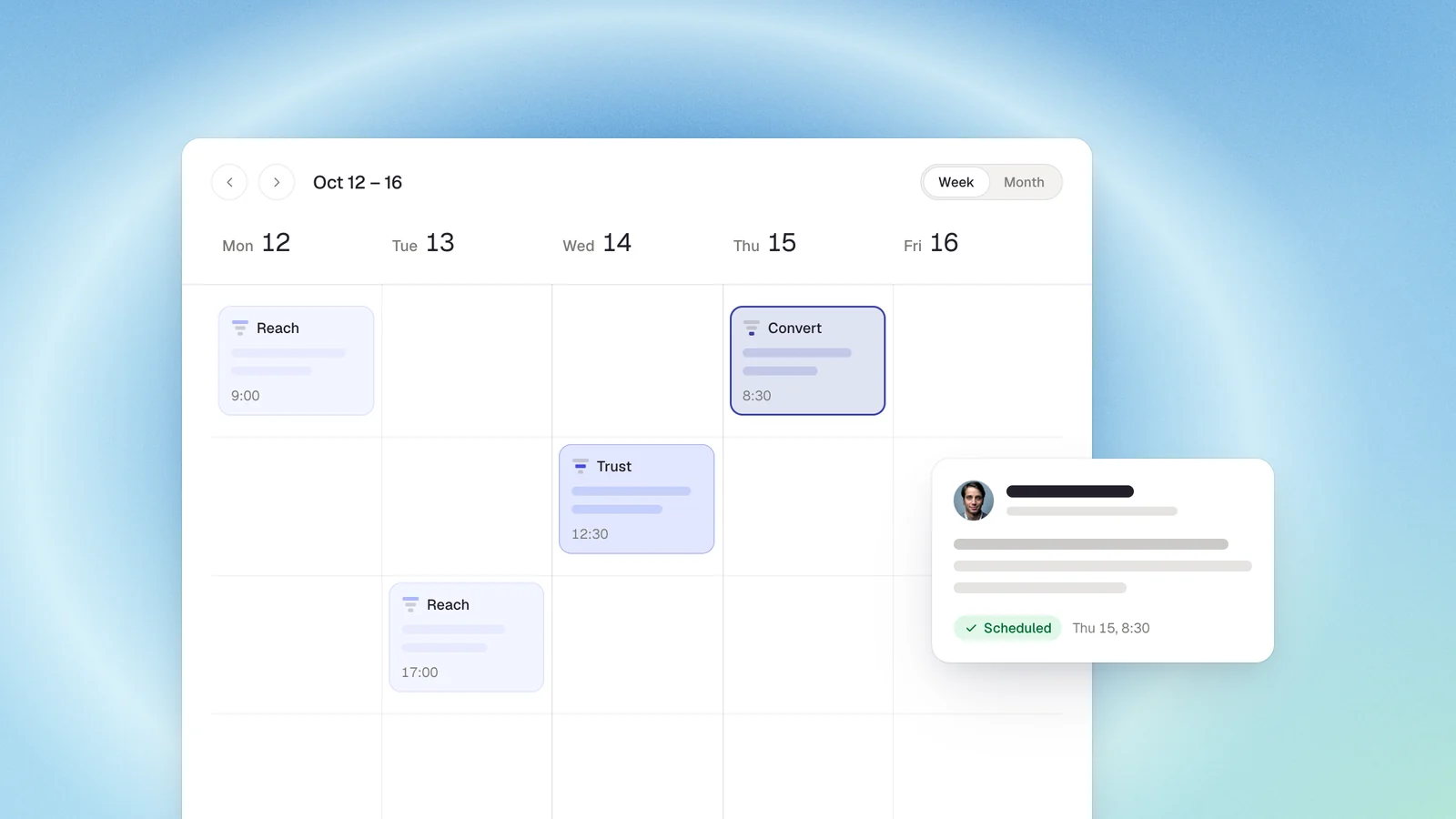
A dedicated tool schedules, reminds, and measures, which a spreadsheet structurally cannot. This is where Scripe fits: a living calendar that plans, schedules, and publishes through LinkedIn's official Community Management API with developer-partner access, so there is no Chrome extension and no password sharing. It also separates organic reach from company-page reach, so you can see what your content is really doing. The point is not a fancier grid. It is showing up every week and knowing it worked.
Calendars for teams and agencies
A team content calendar shows every profile's posts in one view, so you can see who is posting what, when, and where input is still needed. This is where spreadsheets break down fastest. At team scale a shared sheet becomes version chaos, and you lose the one thing you actually need: visibility into who has genuinely posted versus who just has an idea sitting in a row.
For an in-house marketer running executives and sales, or an agency running clients, the calendar has to span many accounts at once and make the gaps obvious. Scripe's team calendar puts every account in a single view for exactly that reason. For the broader operating model of running content across a team, see our B2B LinkedIn content strategy guide.
Get consistent and stay consistent
A calendar only matters if you are still using it in month three. The template gives you the plan. Staying consistent is what turns the plan into visibility, credibility, and pipeline.
If you keep abandoning the spreadsheet, that is the signal to move to something that carries the rhythm for you. Scripe turns a static calendar into a living one: it captures your ideas before they slip away, reminds you, schedules and publishes through the official interface, and shows what performs across one profile or many, so you never miss a week.
You can try Scripe for free for 7 days and see it yourself.
Start a Free TrialFAQs

Head of Growth
Nicolle Sophie is Head of Growth at Scripe, where she leads creator and partnership strategy, drawing on cross-disciplinary expertise in influencer marketing, content strategy, automation, and AI. She has built her career at the intersection of these fields, giving her a versatile, full-picture approach to growth that few specialists can match.
LinkedIn