What are linkedIn events and linkedIn live?
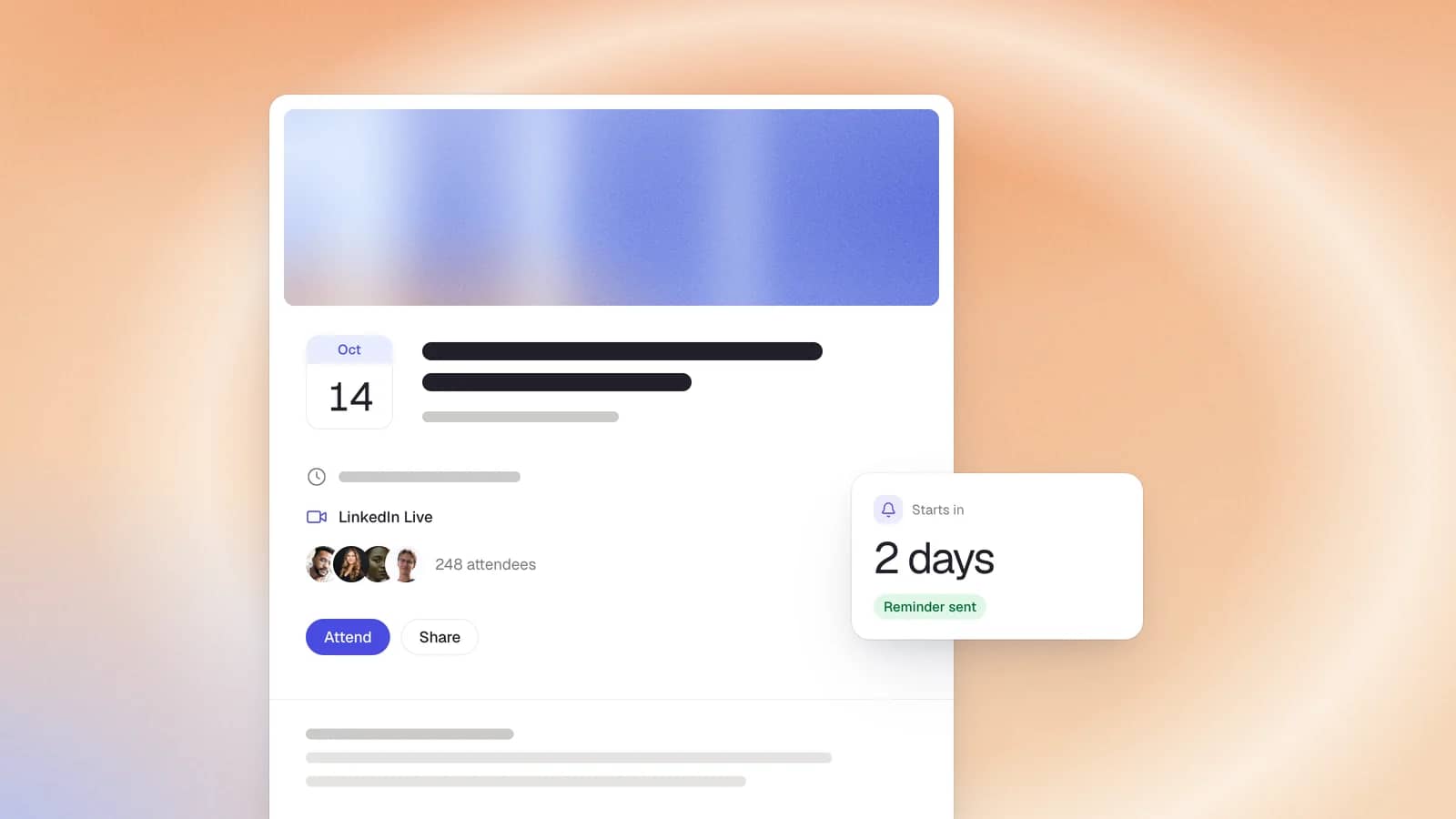
LinkedIn Events are dedicated pages for hosting or promoting a gathering (a webinar, product launch, panel, or in-person meetup) with a registration flow, an event feed, attendee invitations, and reminders. Events can be online or offline, native to LinkedIn or a link to an external site. For event organizers, this turns LinkedIn into a genuine event marketing channel rather than a calendar: you can promote online events, offline events, and hybrid ones to a professional audience, then capture and follow up with attendees.
LinkedIn Live is the platform's live video streaming feature, letting you broadcast live video directly to your professional network from a personal profile or company Page. It is built for real-time interaction: viewers comment, react, and ask questions as you stream.
LinkedIn events vs. LinkedIn live: how they now work together
The old mental model was that Events were for scheduling gatherings and Live was for spontaneous broadcasts. As of 2026, that line is gone. Live now runs inside Events: to go live, you first create a LinkedIn Event set to the LinkedIn Live format, then broadcast into it.
An Event can exist without a live stream (a registration page for an external webinar, say), but a live stream can no longer exist without an Event. Think of the Event as the container and Live as one thing you can do inside it.
What changed in 2026
Here is the flagship fact the stale guides miss. LinkedIn announced on March 29, 2026 that, starting June 22, 2026, all live events must be scheduled ahead of time and the ability to go live spontaneously would end. Live streaming itself did not go away. What ended is the ad hoc "open LinkedIn and broadcast" flow. You can still go live on short notice, because you can schedule an event just minutes before starting, but the event-creation step is now mandatory.
Why would LinkedIn add friction? Because it is building a commercial layer on top of live video that only works with a structured event window. For anyone already scheduling their broadcasts, which is everyone who cares about attendance, this changes almost nothing except adding one step. For the "wing it and go live" crowd, the workflow they relied on is gone.
The practical takeaway: stop thinking of Live as a quick broadcast button and start thinking of it as the live phase of an event campaign.
Who can use LinkedIn events? Access requirements
Access is granted automatically if you qualify, and the option simply will not appear if you do not. Per LinkedIn's official access criteria, you need:
- An audience base: more than 150 followers and/or connections.
- Account age: the profile or Page must be at least 30 days old.
- Good standing: a clean record under LinkedIn's Professional Community Policies.
- Geography: available worldwide except mainland China.
LinkedIn also looks for a history of original content, so active accounts qualify more readily. One more technical requirement: you cannot broadcast from the LinkedIn app itself. LinkedIn Live is an RTMP-based system, so you go live through an approved third-party streaming tool or a custom stream, which we cover next.
Eligibility is reviewed automatically the first time you try to create a Live event, so there is no separate application to submit. One limit to plan around: you can broadcast to only one LinkedIn channel at a time, though many broadcasting tools let you simulcast to other platforms such as YouTube alongside your LinkedIn stream.
How to create a LinkedIn event (Step by Step)
Because Live now runs through Events, creating the event is step one for everything. From your homepage or Page admin view, find the Events option (under "Create" or in the left rail), then work through the details.
Personal Profile vs. Company Page
Decide who hosts. An event on a company page carries brand weight, appears to Page followers, and lets multiple admins manage it. An event from a personal profile typically earns more reach and feels more human, since people follow people. For thought-leadership sessions, host from a person; for official launches, host from the Page and have your people amplify it.
Format, Details, and the Registration Form
Choose online or in-person, then the format: LinkedIn Live, LinkedIn Audio, or an external link for events hosted elsewhere. Fill in the event details (name, date, time zone, description, speakers). Then the key decision: the registration form.
Turning it on captures attendee data (name, email, and custom fields) you can follow up with, which is invaluable for lead capture. But it also adds friction that can suppress casual sign-ups. Use it when the follow-up matters (webinars, demand-gen events); skip it for open, top-of-funnel sessions where you just want maximum attendance.
Event cover image specs
Upload a cover that reads clearly on mobile. The current recommended LinkedIn Event page cover is 1776 x 444 pixels, a 4:1 ratio. Note this is different from the event ad image, which is a separate spec covered in the cheat sheet below, a distinction most guides get wrong.
How to go live on LinkedIn in 2026 (the current workflow)
This is the section the stale competitors get flat wrong. Here is the actual, current flow.
1. Schedule the event first (the new mandatory step)
Create a LinkedIn Event and select the LinkedIn Live format. This is now non-negotiable: no scheduled event, no stream. You can set the event minutes before you intend to broadcast, so short-notice going live is still possible, it just runs through the event.
2. Connect a broadcasting tool or custom stream
Because LinkedIn has no built-in studio, connect an approved broadcasting tool such as Restream, StreamYard, Socialive, or Switcher Studio, or use a custom stream via an RTMP encoder like OBS or Zoom. In your streaming software, open the stream settings tab, then copy the stream URL and stream key LinkedIn provides into the tool (or let an approved tool auto-connect). The tool checks your eligibility and links to the scheduled event.
3. Go live and manage the stream
You can start broadcasting from 15 minutes before to two hours after your scheduled start time. Once live, engage: reply to comments in real time, pin questions, and keep an eye on stream health in your tool. On length, LinkedIn recommends at least 10 minutes and caps a single stream at four hours. Most successful sessions land in the 20-to-30-minute sweet spot. Every stream is automatically recorded and stays on your profile or Page as a replay, which often out-earns the live broadcast itself.
Best practices for running a great LinkedIn event
A strong event is won in three phases.
Pre-event
Build anticipation. Invite relevant connections, add your speakers as co-hosts so it posts to their networks too, publish teaser content in the weeks beforehand, and post updates to the event feed so registrants get notified. The goal is a warm audience waiting when you start, not an empty room you fill live.
During
Open with a hook, not five minutes of "we'll wait for people to join." Latecomers catch the replay. Drive audience engagement by asking questions, calling out commenters by name, and responding in real time. Going live triggers push notifications to a subset of your followers, so the first minutes matter for pulling people in and reducing viewer drop-off.
A few production basics separate a watchable stream from an awkward one: prioritize clean audio over video quality (viewers forgive a soft image but not bad sound), use a co-host to keep the energy up and field comments so you can focus on talking, and write a loose run of show so you never stall. Test your streaming software and stream connection a few minutes early, because a dropped stream mid-session is the fastest way to lose an audience you worked weeks to gather.
Post-event
The work is not done when you stop streaming. Publish the replay, run a quick poll or feedback request, and clip the best three to five moments into short posts for the feed. Then retarget: registrants and viewers are a high-intent audience for follow-up content. Check the analytics too: LinkedIn reports registrations, attendees, unique viewers, watch time, and engagement for each event, and with a registration form you also get the attendee list for sales follow-up. Those numbers tell you what to repeat and hand your team warm names.
How to promote your LinkedIn Event (Organic + Paid)
Promotion is where the 2026 campaign layer earns its keep.
Organic
Start free. Invite your connections, repost the event to your feed, tag speakers as co-hosts to borrow their networks, and run teaser content two to four weeks out. Ask your speakers and colleagues to share the event from their own profiles too, since a handful of personal reposts routinely out-reaches a single company page post. Organic reach through people is still the cheapest, most trusted distribution you have.
The Boost button
For a fast paid lift, LinkedIn's Boost button turns an event or event post into an ad in a few clicks, no Campaign Manager expertise required. It is the low-effort on-ramp to paid promotion when you want more reach without building a full campaign.
A 2026 LinkedIn event campaign calendar
Run Live and Events as one timed campaign. Save this.
- Awareness (6 to 4 weeks out): create the Event, invite connections, add speakers as co-hosts, and start teaser content. Warm the audience before you ask for a registration.
- Registration (4 to 2 weeks out): run Event Ads with Lead Gen Forms; a two-week lead time is LinkedIn's recommended best practice for pre-event advertising.
- Event day: activate Live Event Ads to push your live stream into feeds in real time, and go live 15 minutes before the scheduled start to gather the room.
- Post-event (up to 2 weeks after): retarget registrants, attendees, and viewers with clipped highlights and thought-leadership sponsored content. Follow-up content to people who watched the livestream sees markedly higher engagement than a cold audience.
If you want to keep that engine running without it eating your calendar, try Scripe free for 7 days to turn your event ideas and replays into a steady stream of posts in your own voice.

Head of Growth
Nicolle Sophie is Head of Growth at Scripe, where she leads creator and partnership strategy, drawing on cross-disciplinary expertise in influencer marketing, content strategy, automation, and AI. She has built her career at the intersection of these fields, giving her a versatile, full-picture approach to growth that few specialists can match.
LinkedIn