What is a LinkedIn company page
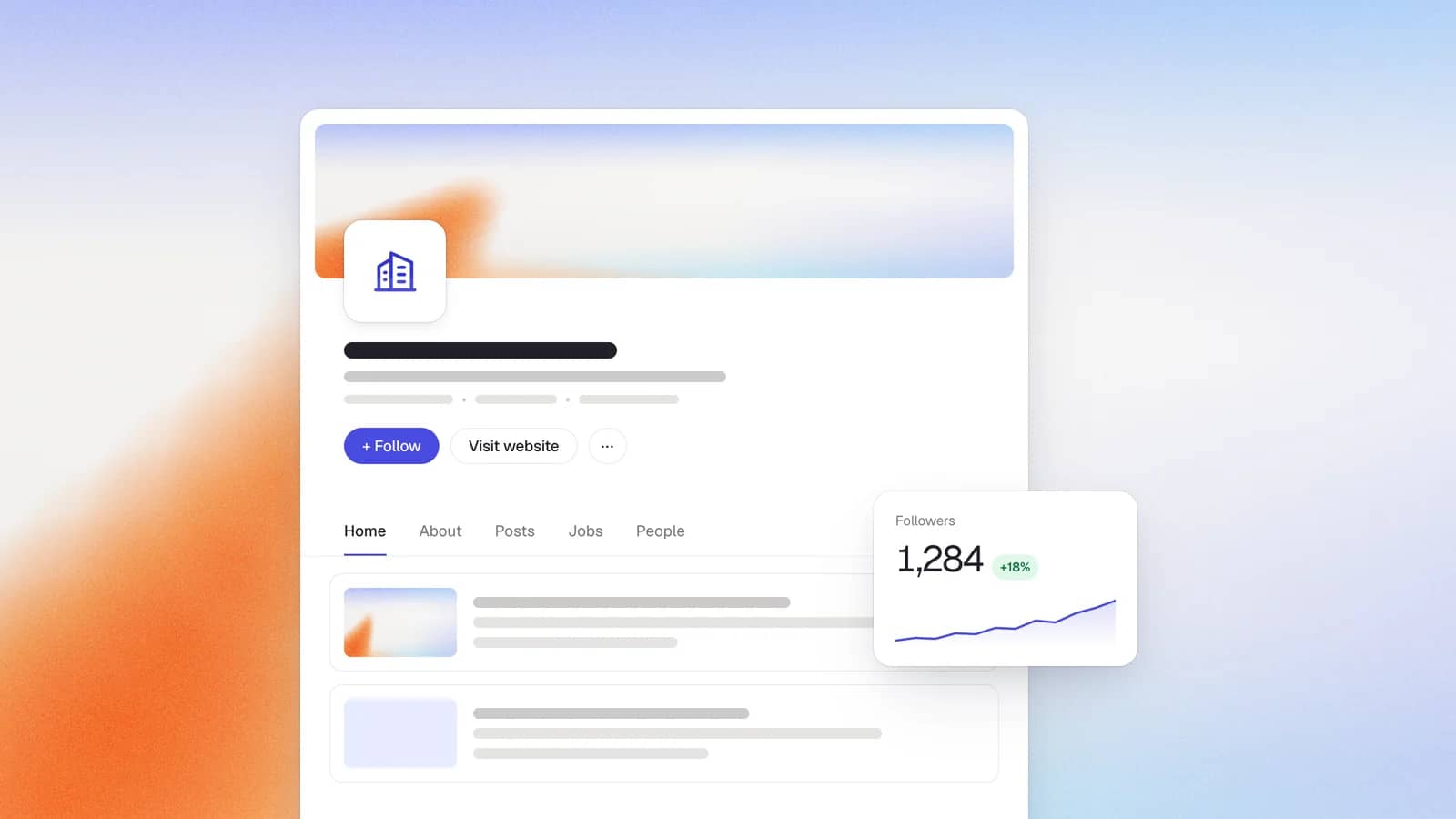
A LinkedIn Company Page (also called a LinkedIn business page) is the official home for your organization on the platform: a public profile with your logo, description, posts, jobs, and follower base, managed by admins on behalf of the brand rather than by one person.
This page is essential, but as a foundation, not a megaphone. Keep that in mind and you will build it correctly the first time.
Before you start: requirements and what to prepare
You create a Company Page from your own personal LinkedIn profile, so your account has to clear a few checks first. Per LinkedIn Help your profile must:
- Be at least one day old. (You will see claims of "seven days" and "24 hours" elsewhere. LinkedIn's stated rule is one day.)
- Have more than one connection. That is the only number LinkedIn states. A fuller network simply makes the page look more credible.
- List you as an employee of the company, with a confirmed email address on your account.
- Pass a workplace verification check if LinkedIn asks for one. You can complete it with a work email on your company domain, or a Microsoft Entra Verified ID (a digital employee credential some companies issue).
Then prepare these assets before you open the form, because half-finished pages usually stall at the upload step:
- Logo: 400 x 400 px (minimum 268 x 268), PNG or JPEG, under 8MB, per LinkedIn's image specifications for Pages .
- Cover image: 1128 x 191 px. (If you use the Life tab later, its hero image is 1128 x 376 px.)
- Tagline: up to 120 characters. Treat it as positioning: who you help and how.
- About text: up to 2,000 characters.
- A permanent public URL and a company-domain email address.
One more thing to decide up front: who owns the page. Name the super admin before you start, and plan to add a second admin immediately so the page is never tied to a single login.
How to create a company page on desktop (7 Steps)
The desktop flow is the fastest and the least fiddly. Here it is, tight.
1. Open the creation tool
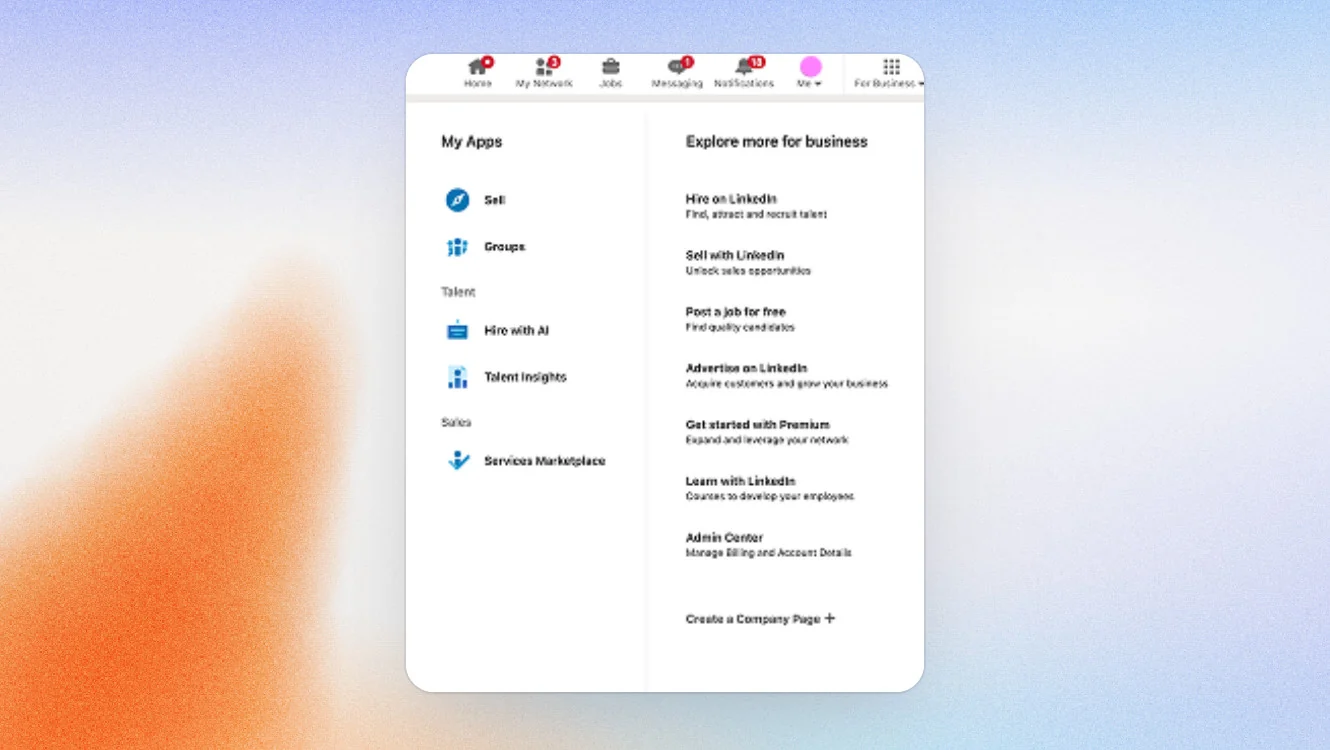
Click the For Business icon (the grid, top right), scroll to the bottom of the menu, and choose Create a Company Page. You can also go straight to linkedin.com/company/setup/new.
2. Choose your page type
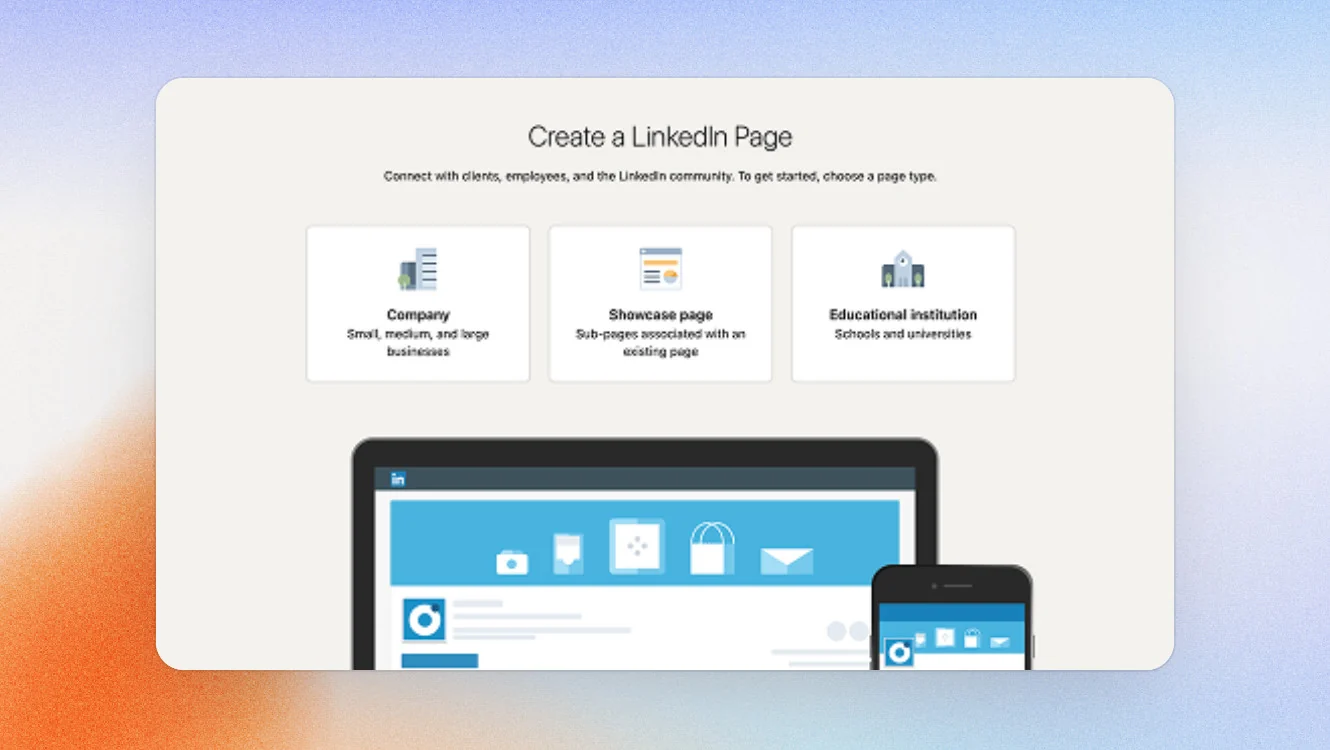
Company, Showcase page, or Educational institution. Most businesses pick Company. (More on the others below.)
3. Enter your identity details
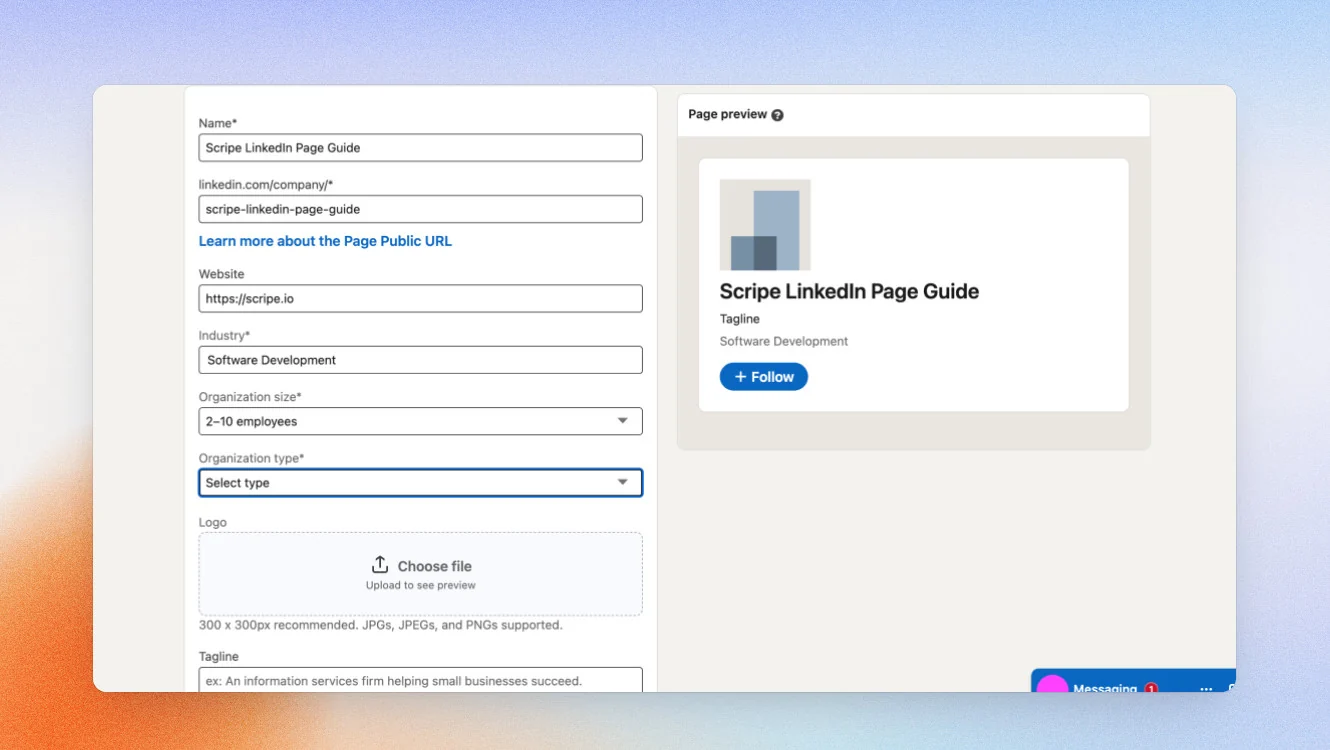
Your official name, your public URL (linkedin.com/company/yourname), website (optional), industry, organization size, and organization type. LinkedIn checks URL availability live as you type.
4. Add your logo and tagline
Upload the 400 x 400 logo and write the tagline (120 characters). The preview panel on the right updates as you go.
5. Verify and create
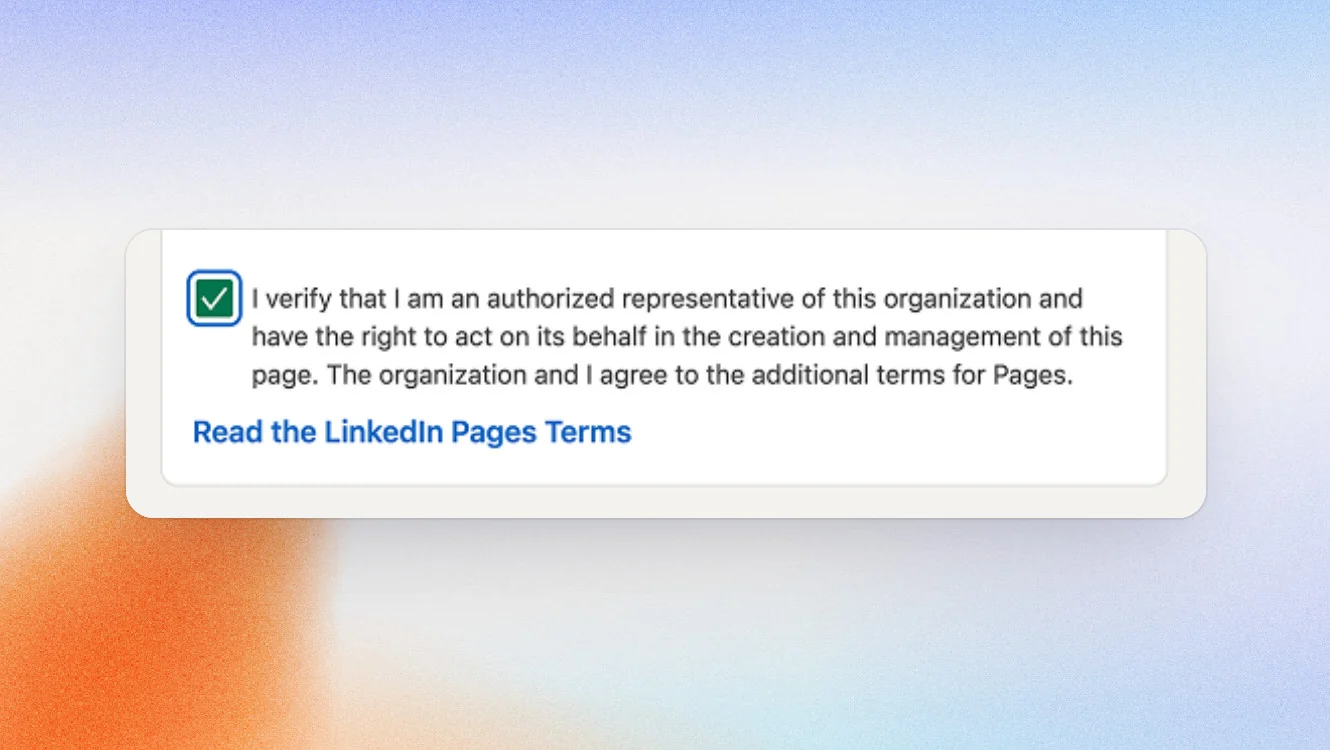
Tick the box confirming you are an authorized representative, then click Create page. If LinkedIn prompts you, complete workplace verification here (work email or Microsoft Entra Verified ID).
6. Build out the essentials
Add your About section (up to 2,000 characters), cover image (1128 x 191), location, and specialties. A complete page is not optional: LinkedIn reports that Pages with complete information get more weekly views.
7. Post before you invite anyone
Publish two or three posts first, then invite connections to follow and prompt employees to link their profiles. An invitation to an empty page converts badly, and you only get one first impression.
How to create a company page on the LinkedIn mobile app
Most guides pretend mobile creation does not exist. It does. The entry point is just hidden well enough that people assume it is impossible.
On iPhone and iPad
- Open the LinkedIn app and tap your profile picture (top left).
- Tap Settings, then scroll to the bottom of the list.
- Tap Create a Company Page.
- Fill in the same fields as desktop: name, public URL, website, industry, and size.
- Upload the logo, add the tagline, tick the verification box, and tap Create page.
On Android
The steps are the same (profile picture, then Settings, then scroll down to Create a Company Page), but the Android app more often hides or restricts the option. If you cannot find it, open your mobile browser, switch it to Desktop site mode, and go to linkedin.com/company/setup/new to reach the full creation form.
image upload is fiddly on mobile and the preview is cramped, so your logo and cover can end up cropped in ways you will not notice on a small screen. If you have the choice, create the page on desktop and use mobile for posting and replying afterward.
Choosing your page type: company, showcase, or educational
Three options appear at the start. Pick deliberately.
- Company: the default and the right choice for almost everyone. One page per legal entity.
- Showcase page: a sub-page for a specific product line, brand, or audience that deserves its own follower base, listed under your main page's affiliated pages. A single Company Page can have up to 25 Showcase Pages and only a super admin can create one. Just because you can make 25 does not mean you should: most organizations do better with three to five well-run ones than a graveyard of neglected pages.
- Educational institution: for schools and universities, with student-and-alumni features a standard company page does not have.
Why can't I create a LinkedIn company page? (troubleshooting)
If the option is missing or you hit an error, it is almost always one of these. Here is the symptom and the fix.
- The "Create a Company Page" option is greyed out or missing. Your profile is probably too new. It must be at least one day old; wait a day and it appears.
- It says you need more connections. You need more than one connection. Add a few real ones and try again.
- You get an error telling you to try again later. LinkedIn rate-limits how many pages can be created in a short window. If you see this, wait a few days before retrying, exactly as LinkedIn's own message suggests.
- It asks you to verify your workplace. Complete the check with a work email on your company's domain, or with a Microsoft Entra Verified ID if your company issues one. A generic Gmail or Outlook address will block verification for some page types.
- A page for your company already exists. Sometimes LinkedIn auto-generates an unclaimed Listing Page from employee profiles. Do not create a duplicate. Claim the existing page instead, then add yourself as admin.
- Your preferred URL is taken. Use a close variant. Page URLs must be lowercase, cannot contain spaces, and must include at least one non-numeric character; LinkedIn replaces stray characters with a hyphen.
Optimize your page after setup
A live page is not a finished page. Spend twenty minutes here and you will get more from every future post.
- Complete every field. Industry, size, location, specialties, website, and hashtags. Completeness is the cheapest ranking and credibility win you have.
- Write the About section for humans first, keywords second. Say who you serve and what you do in the opening lines, work your category keyword in naturally, and end with a clear next step. It appears in LinkedIn and Google search, so the first 150 characters matter most.
- Set the custom button. Point your call-to-action button (Visit website, Contact us, and so on) at the single action that matters most, not a generic homepage.
- Add admins and roles. Assign a super admin plus content and analyst roles as needed, and always add a second person so the page survives someone leaving.
- Link your employees. Prompt your team to add the company in their profile's experience section. That connects their profiles to the page and is the closest thing to free reach a page gets.
Make the page actually perform
This is where the reach reality from the top comes back, because it changes what you should even try to do.
If early engagement is weak, the post never expands. So do not judge the page by follower count or chase viral posts from it. Instead:
- Use employees as your distribution. The page is the source; your people are the pipes. Publish content genuinely worth resharing (customer results, a strong point of view, useful data) rather than asking staff to reshare bare announcements.
- Favor the formats pages actually get mileage from. Document and carousel posts, native video, and posts attributed to a human tend to travel further than logo-and-link updates.
- Never post a naked link. Write the insight in the post; put the link in the first comment or lower down. Link-only posts are the fastest way to get buried.
- Pick a cadence you can hold. Two to three posts a week, sustained for a year, beats five a week for a month. An abandoned page shows its last-post date to every visitor.
- Judge it by the right numbers. Engagement rate, profile visits, and button clicks tell you the page is doing its credibility and search job. Follower count is a vanity metric.
Ready to keep the page fed without it eating your week? Try Scripe free for 7 days: turn a two-minute voice note into a finished post, batch a couple of weeks of content in one sitting, and help your team post as themselves so the page has something worth resharing.

Co-Founder & CTO
Christoph Meise is Co-Founder and CTO at Scripe, where he leads engineering and product development with a focus on building intuitive, high-performing user experiences. With over a decade of engineering experience at multiple companies he combines deep technical expertise with a strong instinct for how technology should actually feel to use. His academic foundation, a Master of Science in Business Informatics from Freie Universität Berlin and a Bachelor of Applied Science in Computer Science from Baden-Wuerttemberg Cooperative State University (DHBW), grounds his engineering approach. He previously co-founded and architected an online platform connecting entrepreneurs with investors, sharpening his focus on building systems that serve real user needs end to end. At Scripe, Christoph has led the product through multiple rebuilds, including a shift to become an official LinkedIn API partner and the launch of a self-learning content agent, work centered on making powerful technology feel effortless for the people using it. Christoph shares his perspective on LinkedIn growth, product development, and building with AI to a following of over 11,000 on LinkedIn.
LinkedIn